


Ladies–
HELP ME!
Before we start the Tutorial today– I have been given a little bit of money to go towards a Cricut Expression. I need to either keep watching e-bay for a fabulous deal, or find one on Craigslist, or find someone else who is selling theirs. If you know of anyone selling one that is in great working condition or have any great tips for acquiring one-beside having one shipped to my house free by the Cricut Fairy, PLEASE LET ME KNOW. If anyone has the Cricut Fairy’s number in their cell phone address book, E-mail me.
We have a REALLY FUN DAY Tomorrow–so be sure and come back.
Sorry the video messed up yesterday-it was working and last night it was blank. I will go in and redo it in a little bit and I have some others to add as well, one of my big boys and the 2 little ones loving on each other.
So let’s get the Tutorial in motion…
Nikki: Alrightie, here goes… Hi everyone my name is Nikki and I have a new, up and coming blog called Kreative Knack.
Cheri: and you all know me–it’s Cheri. We are doing a tag team post. Nikki did a great job but I was able to share with her a few things to save her time–I am all about EASY PEASY. I sent over my instructions to Nikki and she liked EASY PEASY too.
Now, I love having a new blogger on here sharing, because many of you are in her shoes, trying to figure it all out and there are some bloggers who have been blogging a year and they still feel like they are learning the basics.
Nikki: Hey, it’s Nikki again–YEAH, I am learning the ropes, not only on my own, but also with alot of help from other super helpful bloggers out there…so here I am to show you some pretty easy steps on how to make a button and how to create a code so that others will be able to grab your button and display it on their blog!
I have put these steps together, with the help from several other tutorials, that helped me along the way, a little from this one and a little from that one.
STEP 1~Create your button picture: Start with a picture or your blog name, no larger than 150 pixels wide. Most of the buttons I’ve seen have been squares that are125 x 125. I created my button picture at Picnik. Which, might I add, is AWESOME, and free (for limited features) but you can upgrade to “premium” and have some real fun!
Cheri: Nikki-I haven’t ever tried Picnik. I will have to check them out — in all that free time, I have.
I have heard of them and it sound interesting. Maybe I could do everything in one place. See even those of us who have been around for a little while learn new things. Thanks Nikki.
Tight now, I go back and forth between Picasa and Photoshop just because there are certain things that I like about each and I haven’t figured out how to do them in just one and get the results I want. Maybe some day I will have enough time to sit and read and study it.
Once I have created the art part of my button, I start with whatever picture or button I have created.
I start in Photoshop and create a 125 x 125 button, or whatever size I decide on.
Make sure you have TRANSPARENT checked. Then I can add a picture in or I can fill the space with color and then add text and flourishes (those swishy things on my Its So Very Cheri Button).
A GREAT SOURCE FOR Free Clip Art is ScrapBlog
They have a good amount of free stuff but then they have some that has to be paid for.
Their prices are reasonable.
HINT: They say the best deal is to buy the most expensive but it is the same price as the others, so buy what you need and you can always buy more later. They say you can create a button over there-I have never tried it before-I am always in a time crunch so I do what I know.
STEP 2~Host the picture you just created: Now you have to find a place to host your picture. I used Photobucket. Upload your button to Photobucket. Keep this window open, to refer back to it in the next step.
Cheri: Hey Ladies-you know me if there is an easier way I am all over it.
YOU CAN ALSO DO IT LIKE THIS:
Like I said, IÂ start in Photoshop and create a 125 x 125 button. Make sure you have TRANSPARENT checked. Then I can add a picture in or I can fill the space with color and then add text and flourishes (those swishy things on my Its So Very Cheri Button).
A GREAT SOURCE FOR Free Clip Art is ScrapBlog
They have a good amount of free stuff but then they have some that has to be paid for. Their prices are reasonable.
HINT: They say the best deal is to buy the most expensive pkg. but it is the same price as the others-per unit, so buy what you need and you can always buy more later. They say you can create a button over there-I have never tried it before-I am always in a time crunch so I do what I know. One day I will try it and show you how to use them for a button.
Once I have the color and Text for my button I save it in JPEG and make any changes I want in Picasa. I post it to my blog. You do this so you can get the code. Now shrink the post, so it is at the bottom of your screen. You don’t close it because you will need it in a second.
Nikki: STEP 3~Create HTML for your button: First go to Notepad or a Word Document.
Cheri: Whoooooo! Nelly——DO NOT SAVE any info in a WORD DOCUMENT.
Word Documents can add extra code into your post and cause crazy things to happen to your blog, on your computer.
Nikki: Cheri, Who is Nelly?
Cheri: You know like riding a horse and you need it to come to an immediately halt–not that I like riding horses or anything-there is no where to park them when I go shopping and it is really hard hauling 4 kids with you.
After summer camp, back in the day when I was a teeny-bopper, and a crazy horse wouldn’t stay on the trail and kept running for trees, I thought I was going to die that day, I do not believe I have gotten back on a horse sonce then. I am not the Pioneer Woman. Prince Charming’s family has several different pieces of land and there is a bunch of acres in all that property. The problem is you have to drive and drive and drive and when you have finally arrived in the middle of NOWHERE, you have arrived. Seriously there is so much land that I have not even been on every piece of the land on a 4 wheeler.
Ok-back to the Tute-you know farm animals smell like a ….
Nikki: Cheri, You are a hoot.
Ladies, Go to your Dashboard.
Go to “Layout“
click “Add a Gadget” (it’s in your sidebar).
A new box comes up scroll down till you see HTML/Javascript, click on it.
A new box comes up–You can write whatever you’d like in the title section…For example~”Grab my Button”or you don’t even have to put anything in it.
Â
Cheri: I recommend having a title so you can know what each item is when you are looking at the layout-it will save you time, so you don’t have to open each and every one till you find the one you want.
Place your cursor down in the big box–At this point you will Paste this code into the text box:
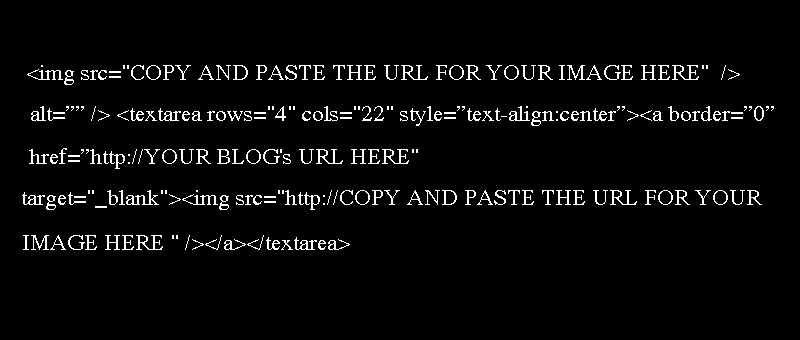


 Â
Now shrink the Gadget, so it is at the bottom of your screen and bring up the post with the picture of your button.
Place your cursor over the picture, of your button, in your post and RIGHT CLICK and a box comes up, go to the bottom, to the line that says PROPERTIES and click on it. Another box opens, copy the ADDRESS LOCATION of your picture. Be sure to get all of the code, there is more than you can see in the window, so scroll from the beginning to end.
Now you will pull up the Gadget window that you shrunk. PERSONALLY-for beginners, I would place my cursor at the very end of the text (that black box text up above that you pasted into the box) and hit enter 2 or 3 times so you have some space after the code, now paste the picture code here and leave it for now in case you have any problems. We will delete it in a bit. Once you have made a few buttons, you won’t need to do that anymore. It just helps to have it so if you need to re-do something.
Remove the words and only the words COPY AND PASTE YOUR URL IMAGE HERE
Now, copy the code of your picture (that extra code-we will eventually erase– at the very bottom) and paste your picture code in the area that used to say COPY AND PASTE YOUR URL IMAGE HERE,
then go to the second picture code and do it again
Now go to where it says:
COPY AND PASTE YOUR BLOG’S URL HERE
and you will delete that and enter your blogs URL in.
Mine would be http://itssoverycheri.com when I was with the old blog, blogspot.com was in my URL
Now before you save it, you will take out that extra code, you know the one I said to do if you were a beginner. It should be super easy to find because there is a space between all the code you want to keep at the top and the code you want to delete. This is similar to what it looks like before you have deleted the extra code:
SAVE and go to your blog and you will see your button with the scroll box underneath so people can grab your button.
To have your button centered and looking all nice and pretty
HERE IS WHAT YOU DO:
The code
<center>
at the very beginning of all of your code
Â
and the code
</center>
at the very end of your code
will make your button be nicely lined up in the middle.
Â
When you go to your blog and look at the button code, all of the code is not there-DON’T PANIC, it’s not supposed to all be there. The code that is in the scroll box is enough for people to grab your button and post it to their blog.
If you want to move your gadgets around, just go into your DASHBOARD LAYOUT and you can move any of them around to a different spot.
We will be having some tutorials on using Photoshop coming up.
Nikki: Oh and I have heard that if you use WordPress.com, (the free blogging “like blogger/Google/blogspot) you will not be able to display the codebox. WordPress.com does not recognize the code! To get around this I recommend doing a blog post announcing your new badge and providing the code to your readers that way. Then you could create a widget on your sidebar, linking to that post. If you are using WordPress.org
Cheri: WP.org is also free but this one is where you have paid for your domain name and are paying for hosting services for your blog) is what I am using and you can use the code box (you can see it under my buttons.
Nikki: One more thing! If you make your own button using this tutorial…let Me know how it went! I’m totally curious.
Thanks and Good Luck. 
And Cheri (who hasn’t had time to install a cool signature yet)
I am linking to:


{ 7 comments… read them below or add one }
Ah man! You Rock! Annnnd I’m glad I got to see the video from yesturday! He was waaaay too cute! Have a wonderful day!
Great tute! I’ve been meaning to get around to making a button 🙂
Love it! Come share it at my party: Thursday’s Treasures!!
http://treasuresfortots.blogspot.com/2010/03/thursdays-treasures-week-13.html
Thanks for the tutorial! I am just starting with a craft blog and was wondering how to do make a button for everyone.
I came over from Treasures for Tots.
Thanks again!
You have no idea how much I needed this. I must be the ONLY blogger without a button. (Plus, you guys are hysterical:-)
Thanks for the tips…and love the new blog!
Suzanne
Hi Cheri. I see you are on the market for a Cricut. I found a great site that I ordered mine from. Actually I got the Create and bought my mom the Expression, which I now regret not getting the Expression. I looove it. Make sure you get Sure Cuts A Lot software so you dont have to buy all the cartridges. Here are the links, http://www.craft-e-corner.com/ and
http://www.craftedge.com/index.html.
My blog has been having serious issues, so I switched to WordPress and hope to be back to blogging and participating soon.
Have a great day.
Great tute. My new button was done by a pro..but I have managed to figure out this part of the html stuff. There are some good links that I did not know about too.